Start here · Guide 1 of 3 · 5 min read
INTELLI LABS · IDEAS IN PRACTICE
Your first brand and your first carousel
Describe what you do, choose a topic and review your first piece with your brand’s identity. One step at a time.
Your first funnel, in 3 steps
19 min total reading · practice at your own pace
See where to do it, step by step
See the path through the platform. Advance at your own pace or play the steps.
One brand, one question, one carousel
You do not need to plan a whole month to get started. We will prepare your brand foundation and create one piece to review. A carousel is a post with several slides that develop an idea.
 Cover
CoverWe will use a fictional example: a home organization service for people who have just moved. Replace it with your own business.
1. Describe the basics of your brand
Open Brands. If this is your first brand, choose Start with AI. Fill in Brand name and What do you do, and who is it for?. A useful description might be: “Home organization for families who have just moved. We help find practical places for everyday belongings through in-home appointments”.
Explain what you offer, who you help and what makes your approach different. You do not need to write like an agency. Details and icon (optional) lets you add context and an icon, but the basics are enough to start. Then choose Prepare my brand with AI.
If your brand already exists, open it in Brands to review its details. You can continue to Create → Carousel without creating another brand.
2. Check that the foundation reflects your business
Preparation suggests positioning, audience, voice and visuals. Use Review brand details to check them. Is the service accurate? Does the audience match the people you serve? Do the voice and colors feel appropriate? Adjust what needs attention.
Start with your brand’s choices. In the carousel editor, Preferences lets you make adjustments when needed; you do not have to decide every option now. If a step needs attention, read the message and check what has already been saved before repeating the action.
3. Choose a question your audience recognizes
In guided creation, choose Suggest my editorial lines. Editorial lines group recurring subjects, such as “preparing to move” and “how the service works”. Review their names and descriptions, then choose Approve and continue when they fit your business.
Help Explain
 Invite
Next, choose a topic for your first piece. “What should I set aside before organizing my home?” is easier to develop than “Everything about organization”. This selects the subject; it does not authorize publication.
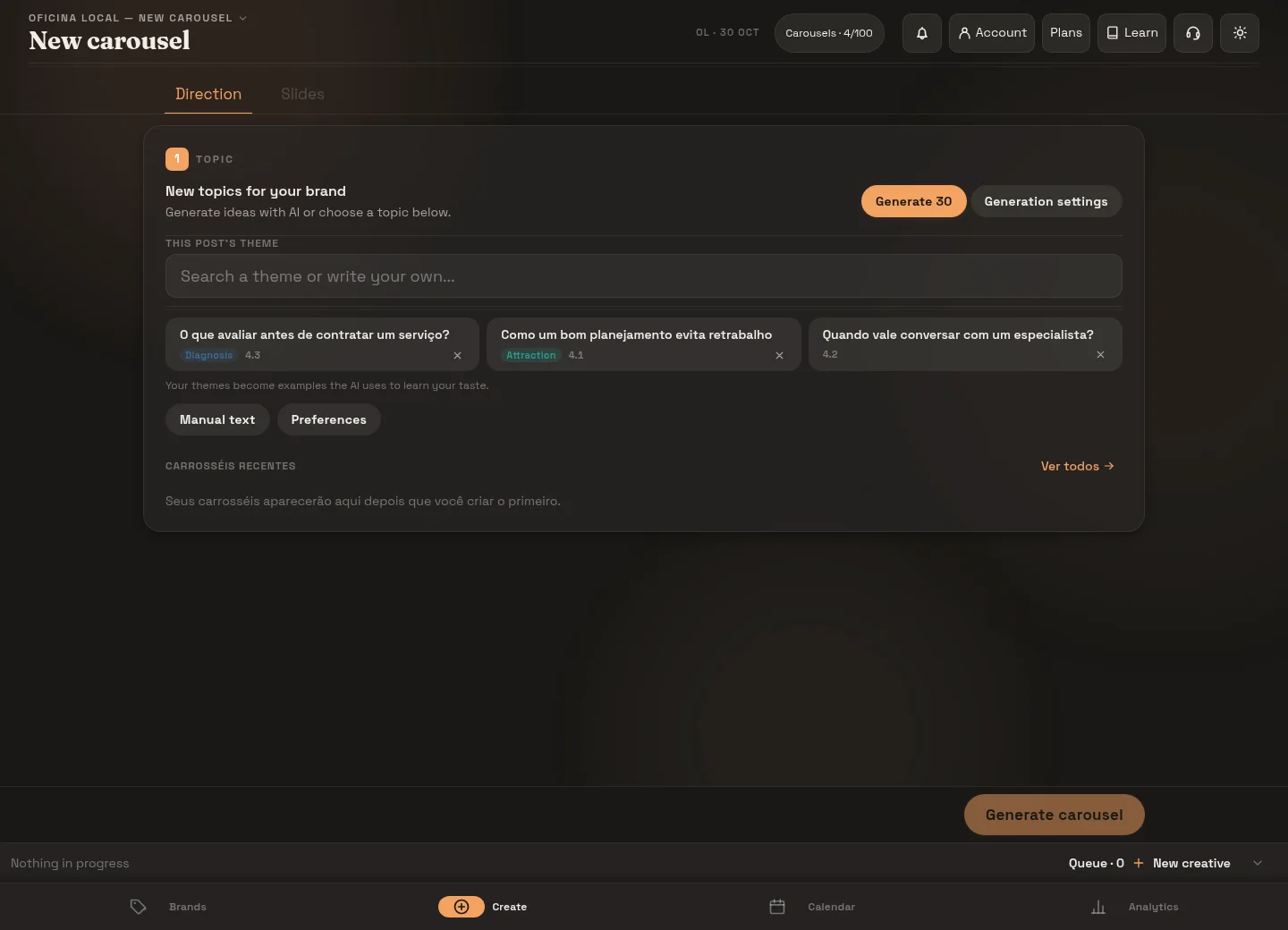
Want to write your own idea? In Create → Carousel, check the selected brand, enter your subject in Topic and use the option to create that topic. You can also choose an existing suggestion. This is an alternative to the topic selection in guided creation.
4. Generate one piece and open it for review
In guided creation’s topic selection, choose Create first carousel. If you are using the Create editor, choose Generate carousel. Follow the preparation status; the time varies with the work in progress. Once the piece is ready, open it for review. In guided creation, choose Open and review carousel.
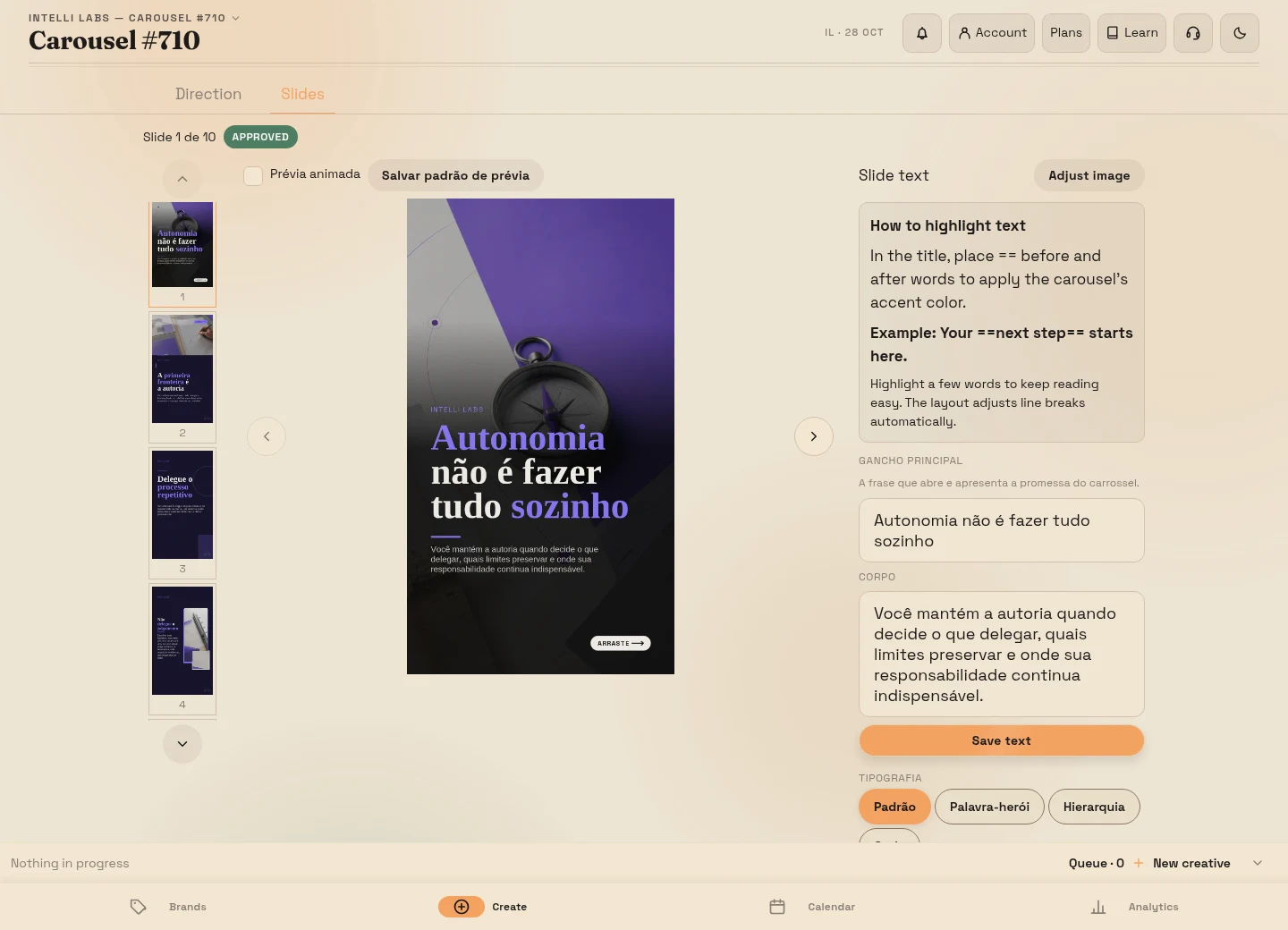
Read every slide, including those after the cover. Does the opening question get answered? Does the text fit? Do the images support the message? Edit any text that needs attention and review the caption below the slides. Save your changes before continuing. AI prepares a draft; you check the information and decide when it is ready.
See the screens: from a topic to the next step
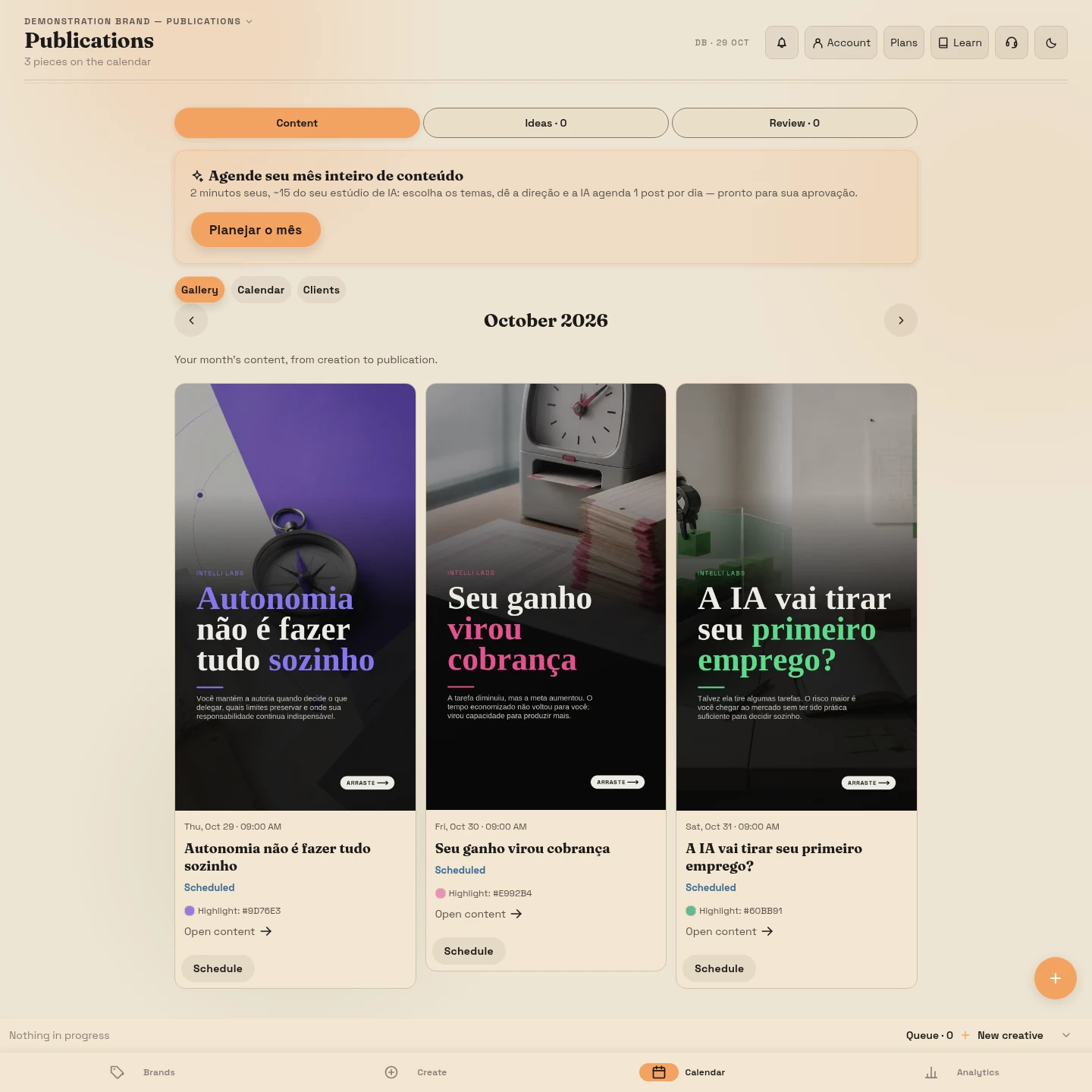
In 45 seconds, see where to check topics, review the copy and prepare the post’s destination.
5. Give readers a next step you can deliver
For our example, the final slide could invite people to explore the organization service. Before sharing it, prepare the destination: a landing page explaining the offer, a booking page for requesting a conversation or a useful resource such as an e-book. These tools are in Create; choose the one that fits this piece’s invitation.
PostIf you offer an e-book, arrange and test how readers will receive it. Creating the material does not set up automatic delivery or an email sequence. If you request contact details, explain their purpose and follow up through a channel the person authorized.
Open the destination on a phone and check that it delivers what the carousel promised. You do not need to create every content type to complete this first exercise.
Your exercise: answer a real question
Choose a question a customer often asks. Create a carousel that answers it and write a final invitation you can deliver. As you review, complete: “This carousel helps someone understand…” and “The next step is…”.
The exercise is complete when the piece is reviewed and its destination is checked. Publication is not required. Keep a note of the question and your edits to help prepare the next piece.
When you are ready to share
Approving a carousel and publishing it are separate decisions. Social connections are still being made available; automatic publication depends on access being enabled, a connected account and valid permissions. Check what your account offers. You can also download the images and copy the caption to prepare publication through your own channel.
With your first piece reviewed, continue to step 2: build your first funnel without buying credits. The next guide connects your page, resource and follow-up. Step 3 then shows you how to publish, review and improve. More detailed planning stays optional.
Before marking: check the deliverable described in this step.
Marks work on this page, but this browser did not allow them to be saved.Mark only what you have put into practice. Your marks stay in this browser.